Windows Setup
Installing Astrill on Windows
This guide walks you through downloading, installing, and connecting with the Astrill app on a Windows PC, from a completely fresh start.
Go to the Download page
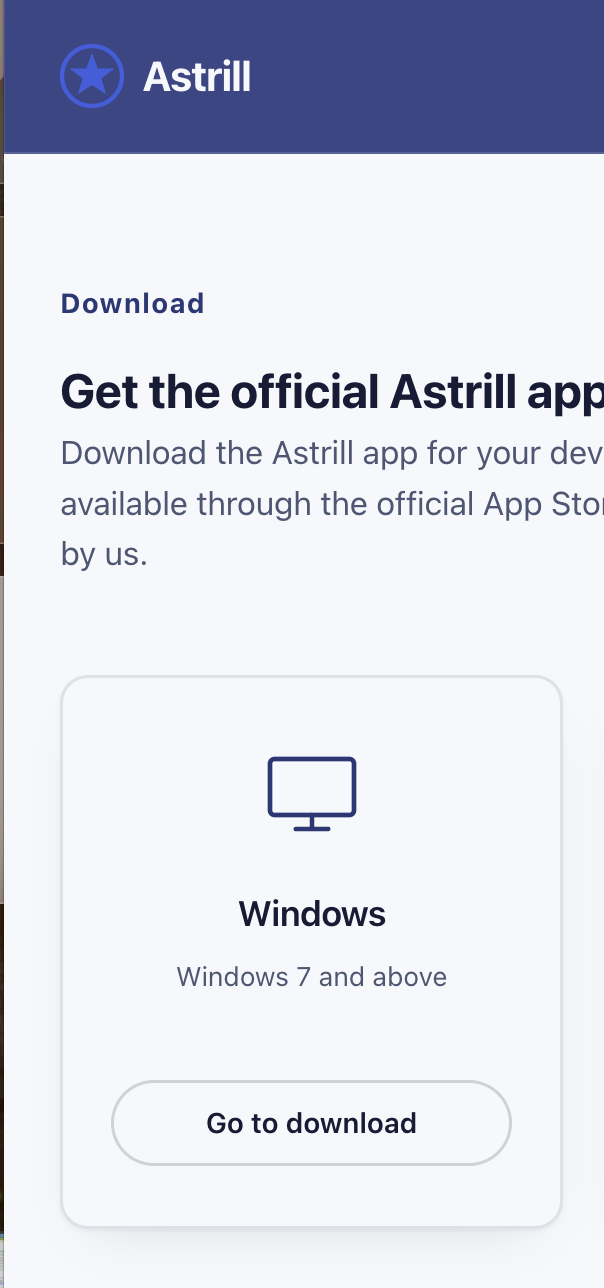
Visit our Download page and click "Go to download" under the Windows card.
Wait for the download to finish
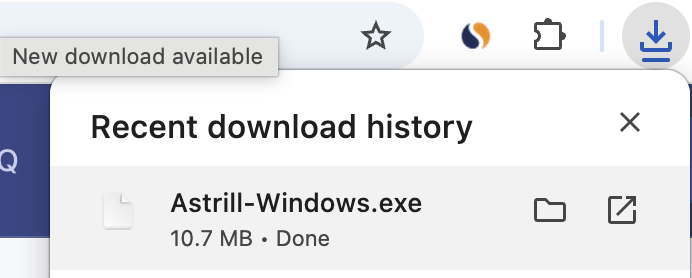
Your browser will download an .exe file (around 10–11 MB). You'll see a confirmation in your browser's download tray once it's done.
Open the downloaded file
Find the installer in your Downloads folder and double-click it to start setup.
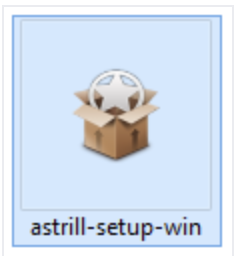
Allow the installer to run
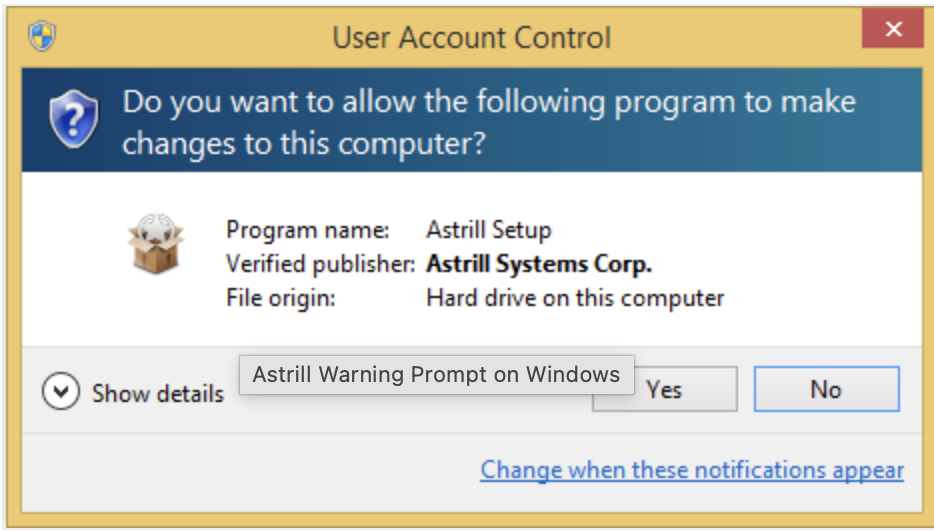
Windows will show a User Account Control prompt asking if you want to allow Astrill Setup to make changes to your computer. Click "Yes" to continue — this is a normal part of installing any new app on Windows.
Start the Setup wizard
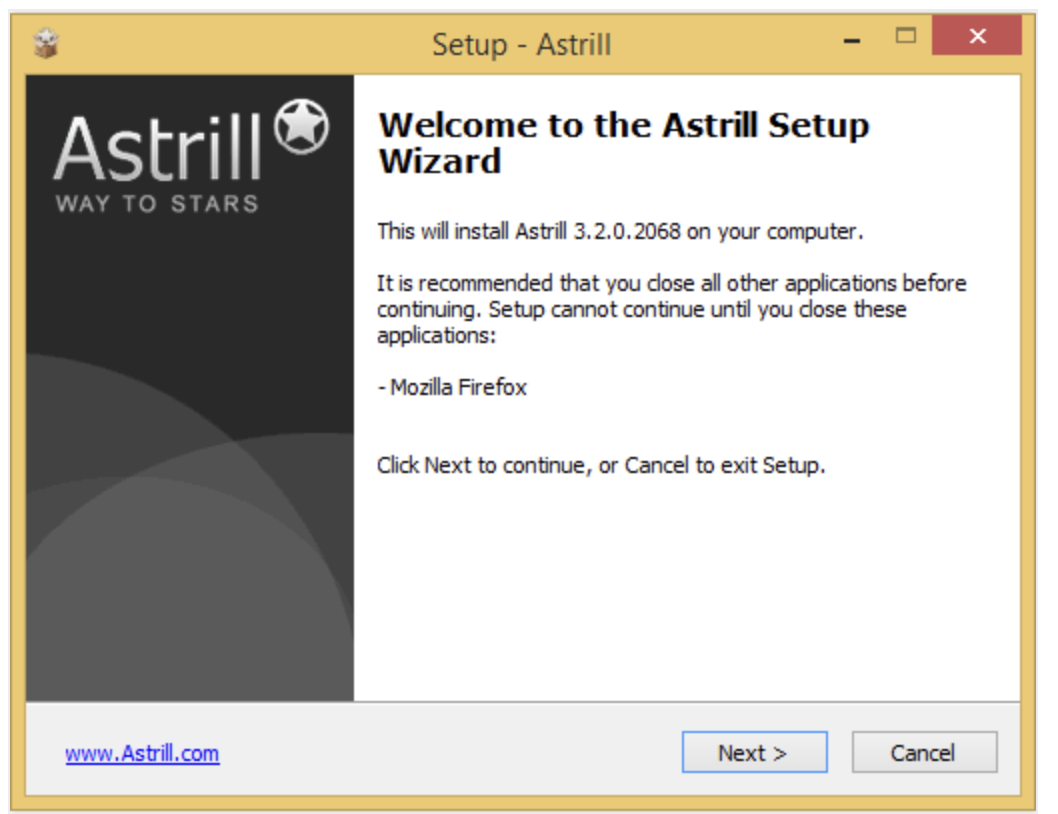
The Astrill Setup Wizard opens with a welcome screen. If you have other applications open, it's a good idea to close them first. Click "Next" to continue.
Accept the license agreement
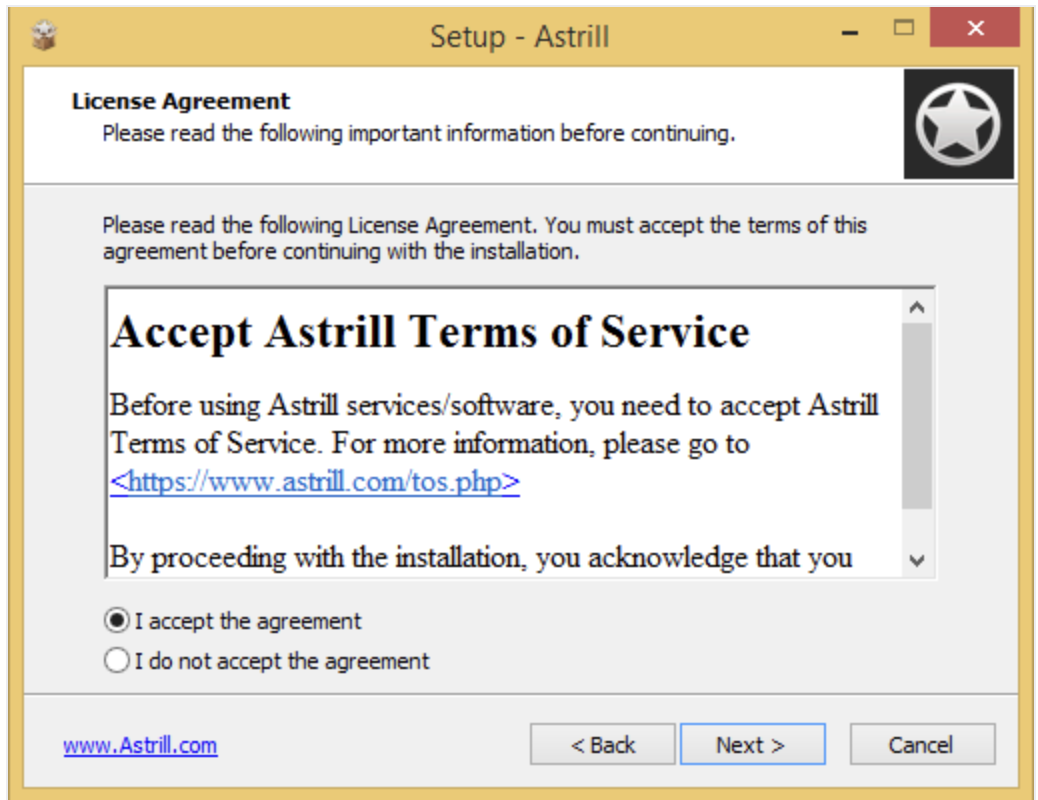
Select "I accept the agreement" to accept Astrill's terms of service, then click "Next."
Choose setup options
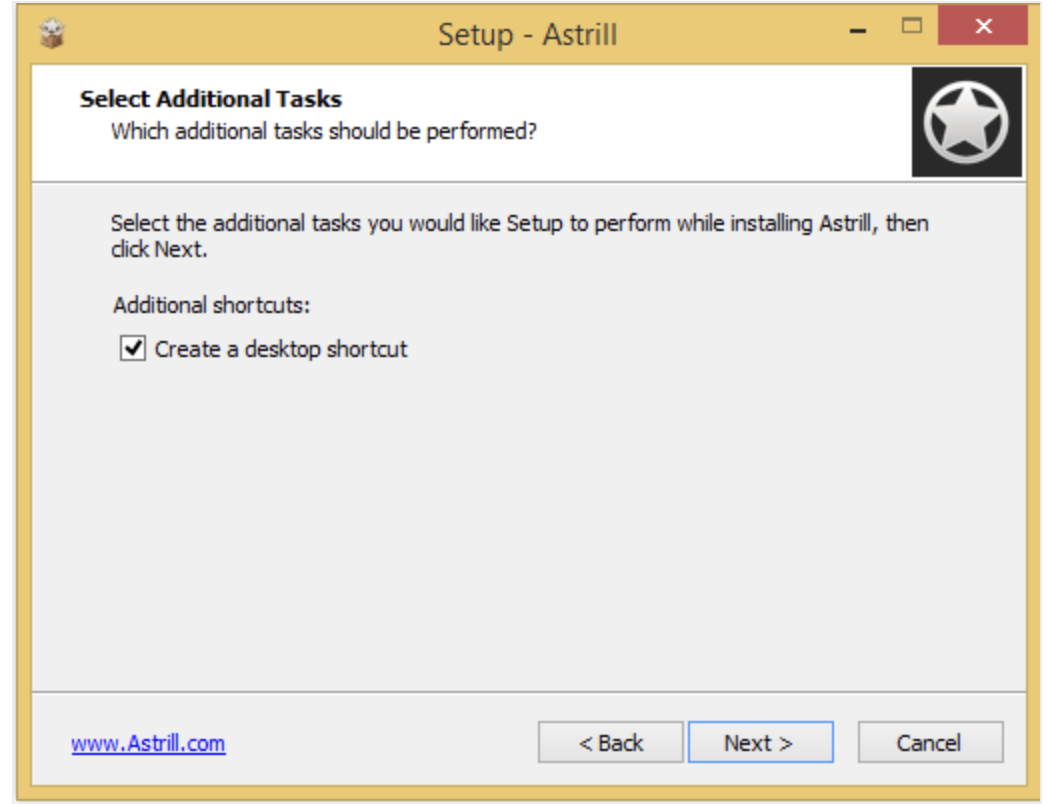
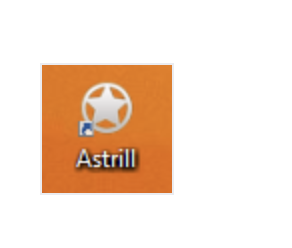
Leave "Create a desktop shortcut" checked if you'd like quick access to Astrill from your desktop, then click "Next."
Begin installation
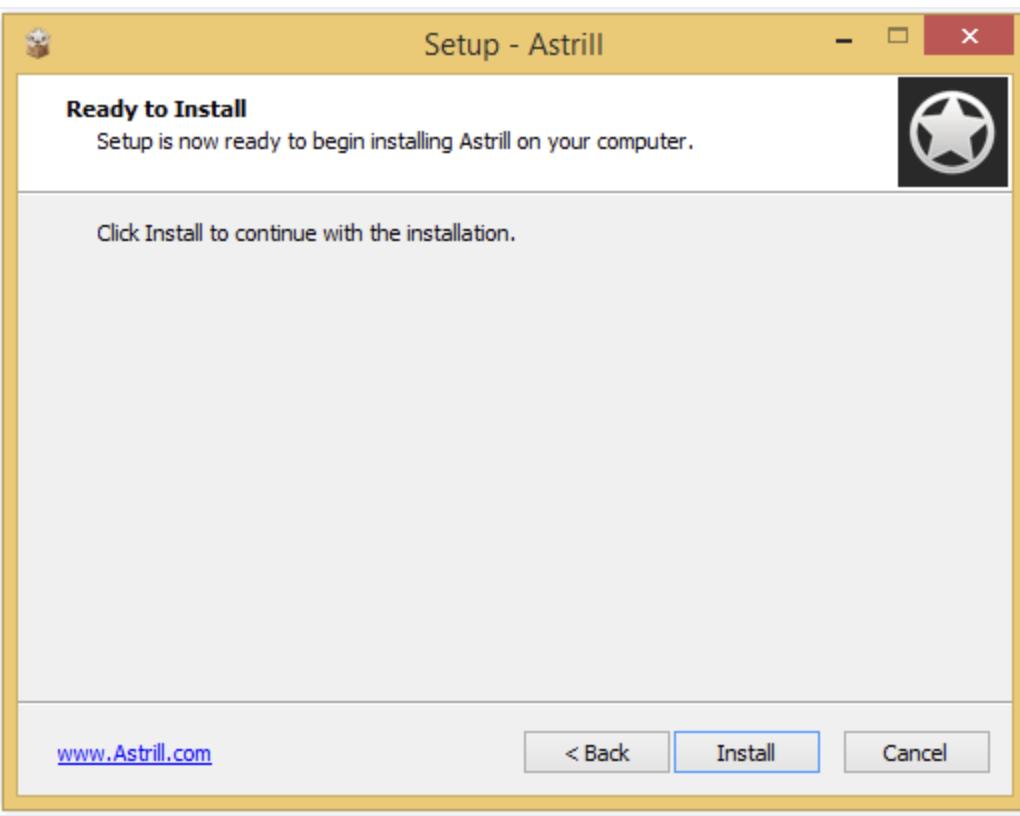
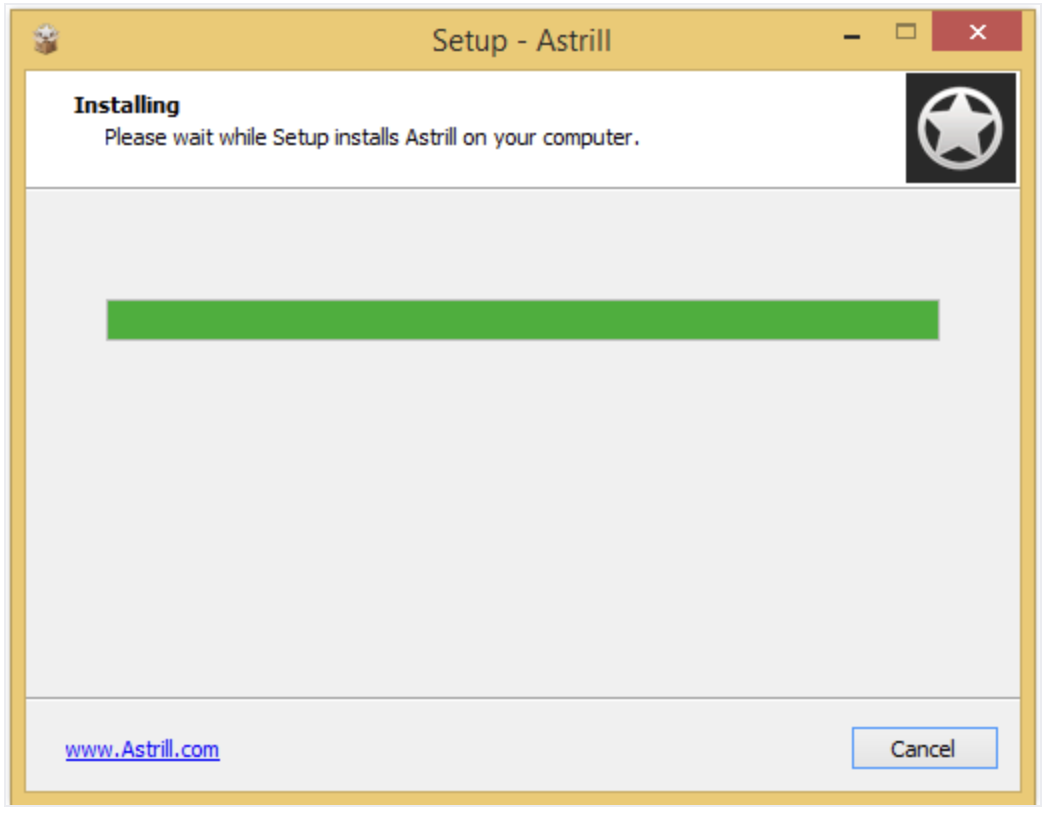
Click "Install" to begin. A progress bar will show while Astrill is installed on your computer — this usually only takes a few seconds.
Finish and restart
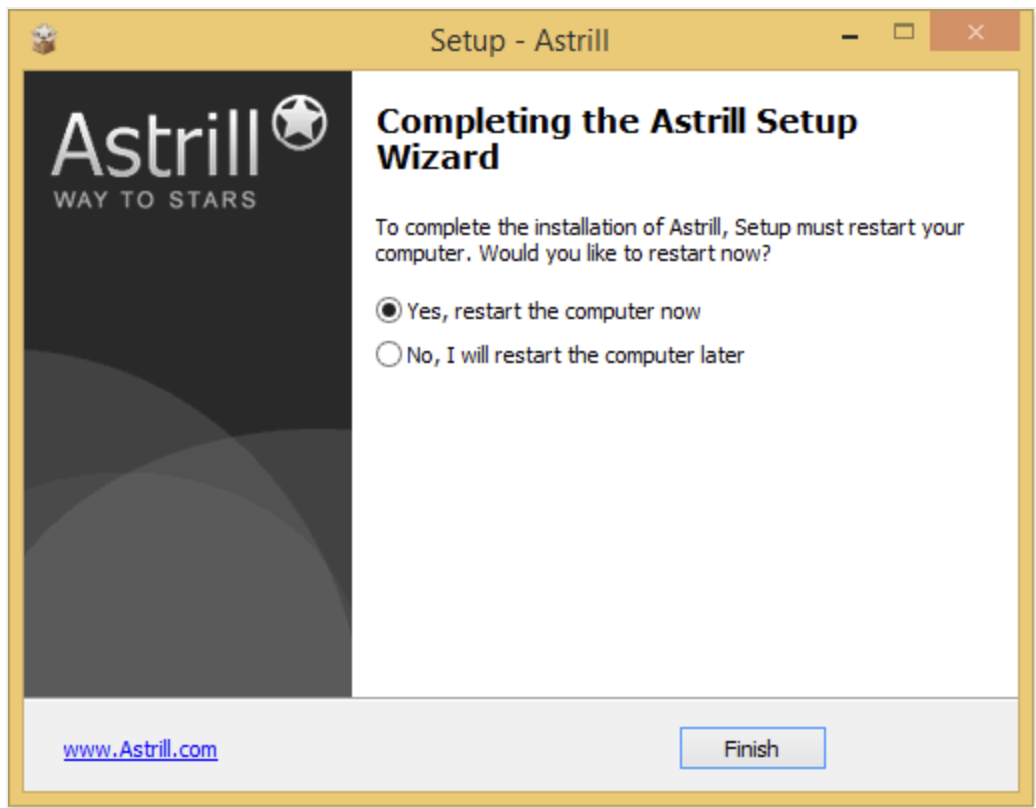
Once installation completes, you'll be asked to restart your computer. Choose "Yes, restart the computer now" and click "Finish" to complete setup.
Open Astrill and log in
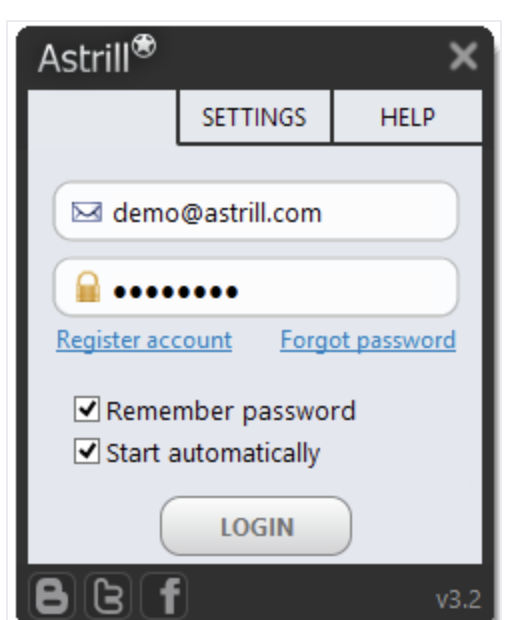
After restarting, open Astrill from the desktop shortcut, then enter the email and password from your purchase confirmation email and click "LOGIN."
Choose a connection mode
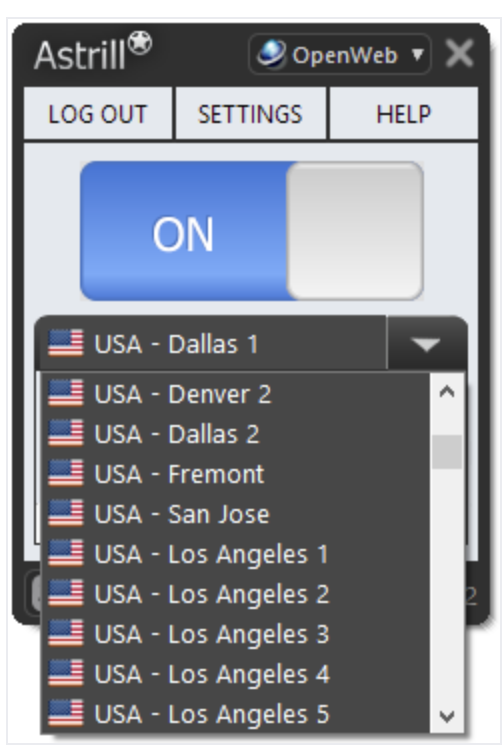
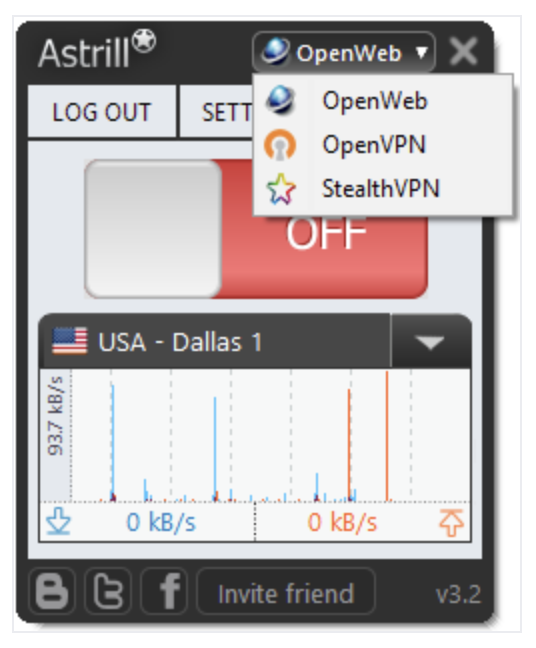
Click the mode dropdown at the top of the app to choose between OpenWeb (fast, browser-friendly), OpenVPN, or StealthVPN. If you're not sure which to pick, OpenWeb is a good default for everyday browsing.
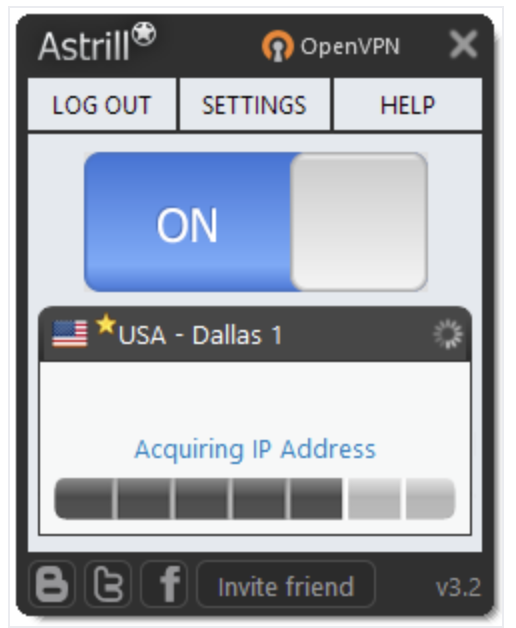
Choose a server and connect
Click the server name dropdown to see the full list, choose a location, then click the OFF switch to connect. You'll briefly see "Acquiring IP Address" while it connects, then the switch will turn blue and show "ON." If a server feels slow, simply pick another one from the list.