Android Setup
Installing Astrill on Android
Because Astrill isn't distributed through the Google Play Store, the Android app is installed directly from an APK file we provide on this site. This is a normal, safe install method as long as the file comes from a trusted source — and ours comes straight from your authorized reseller.
Go to the Download page
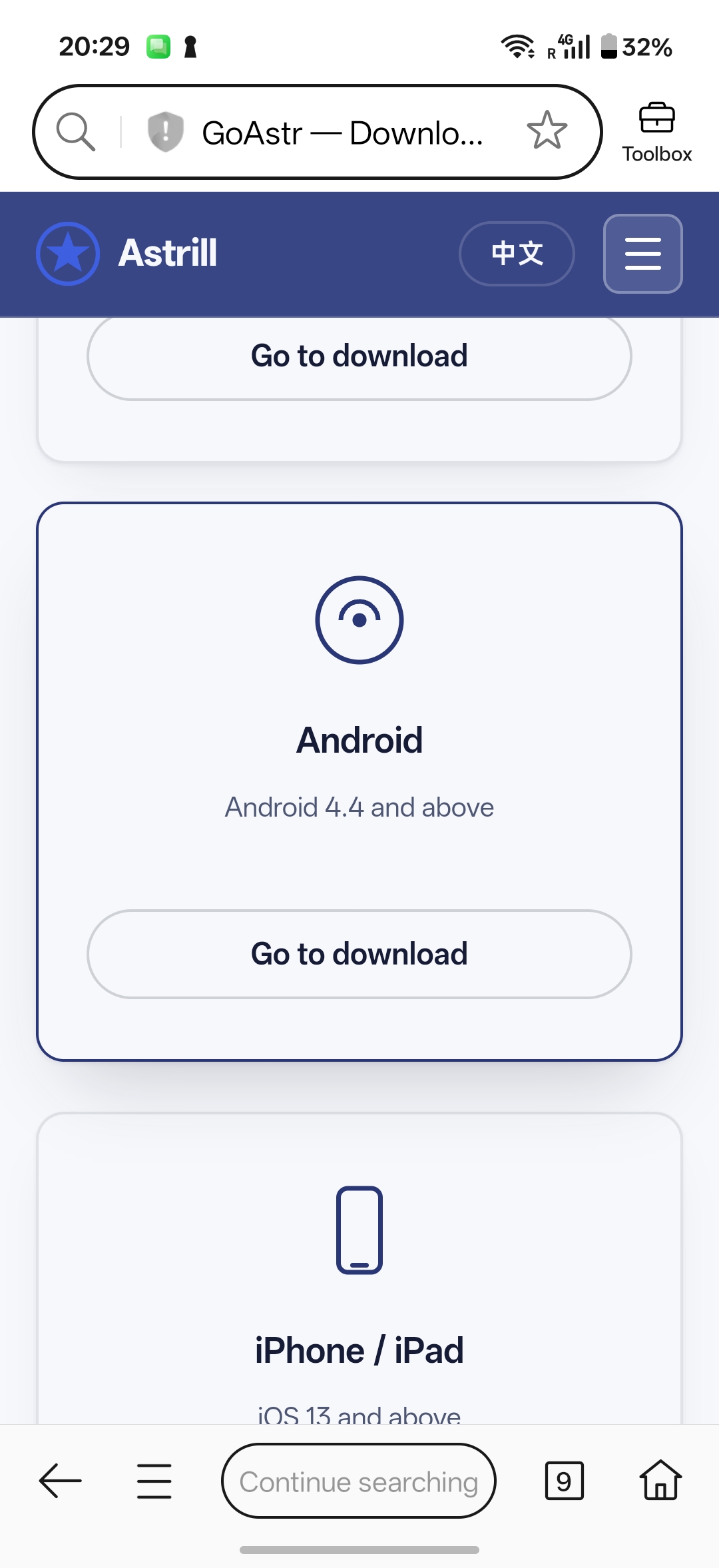
On your Android device, visit our Download page. You'll see options for Windows, Mac, Android, iPhone, iPad, and Routers — tap the Android card.
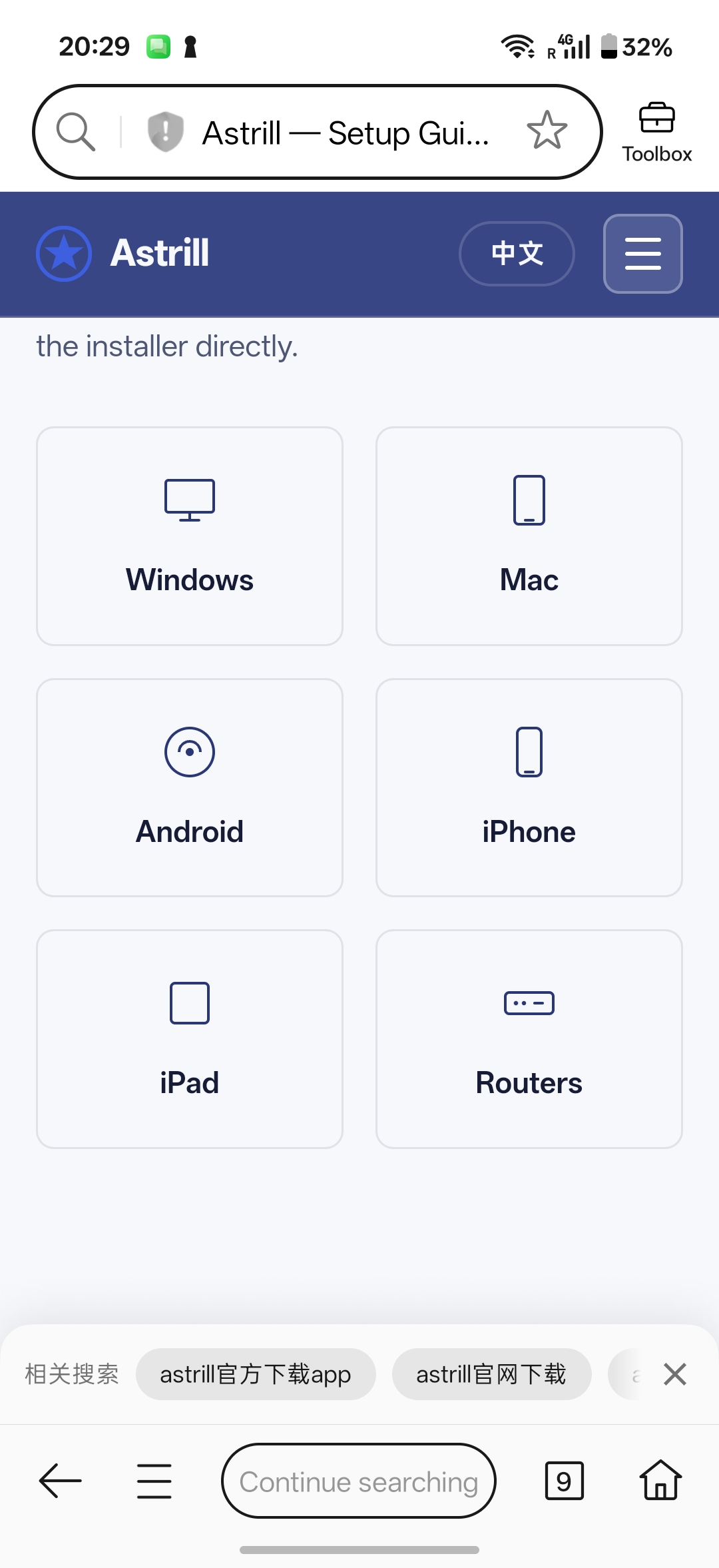
Tap "Go to download"
The Android card shows which versions are supported (Android 4.4 and above). Tap "Go to download" to start downloading the APK file.
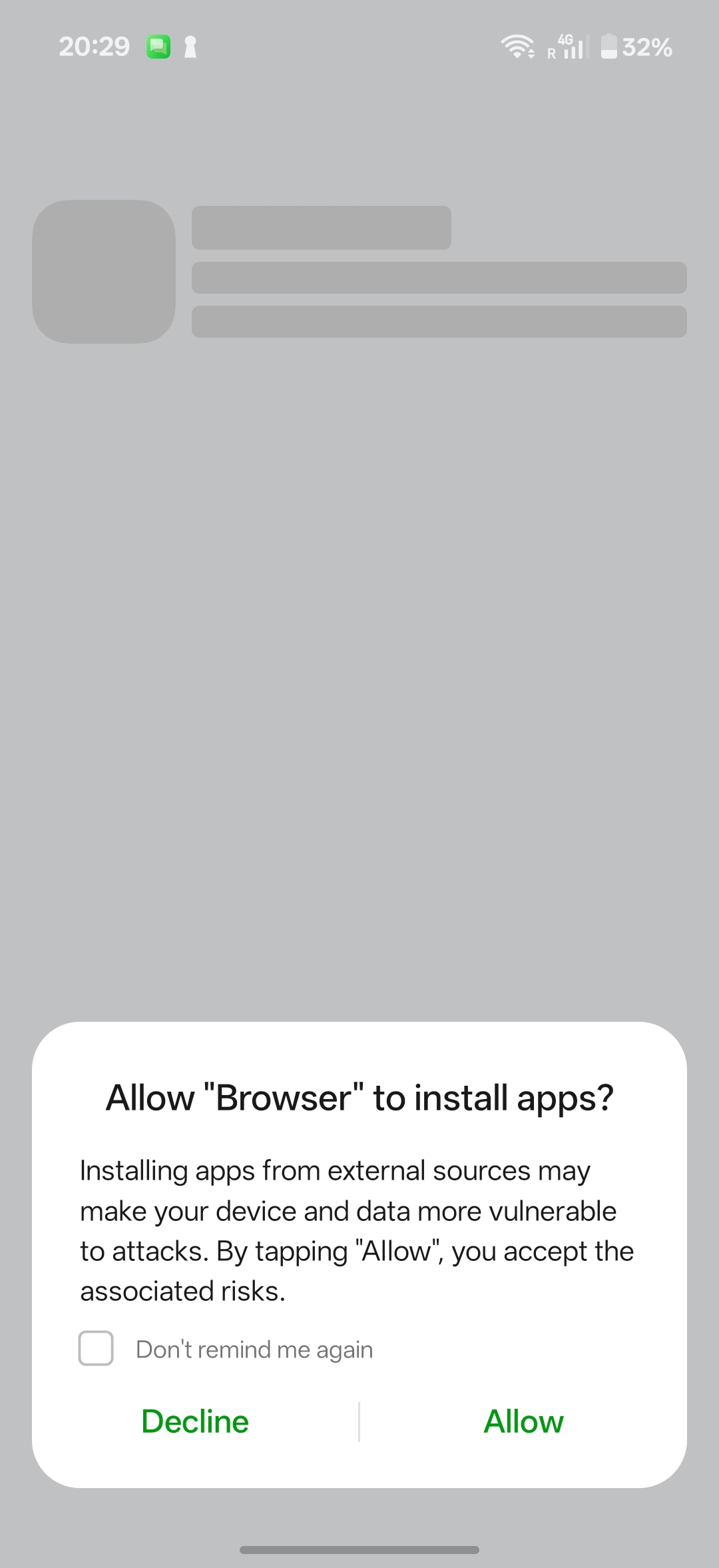
Allow your browser to install apps
Since the app isn't from the Play Store, your browser will ask permission to install apps from this source. Tap "Allow" to continue — this is a standard step for any APK install, not specific to Astrill.
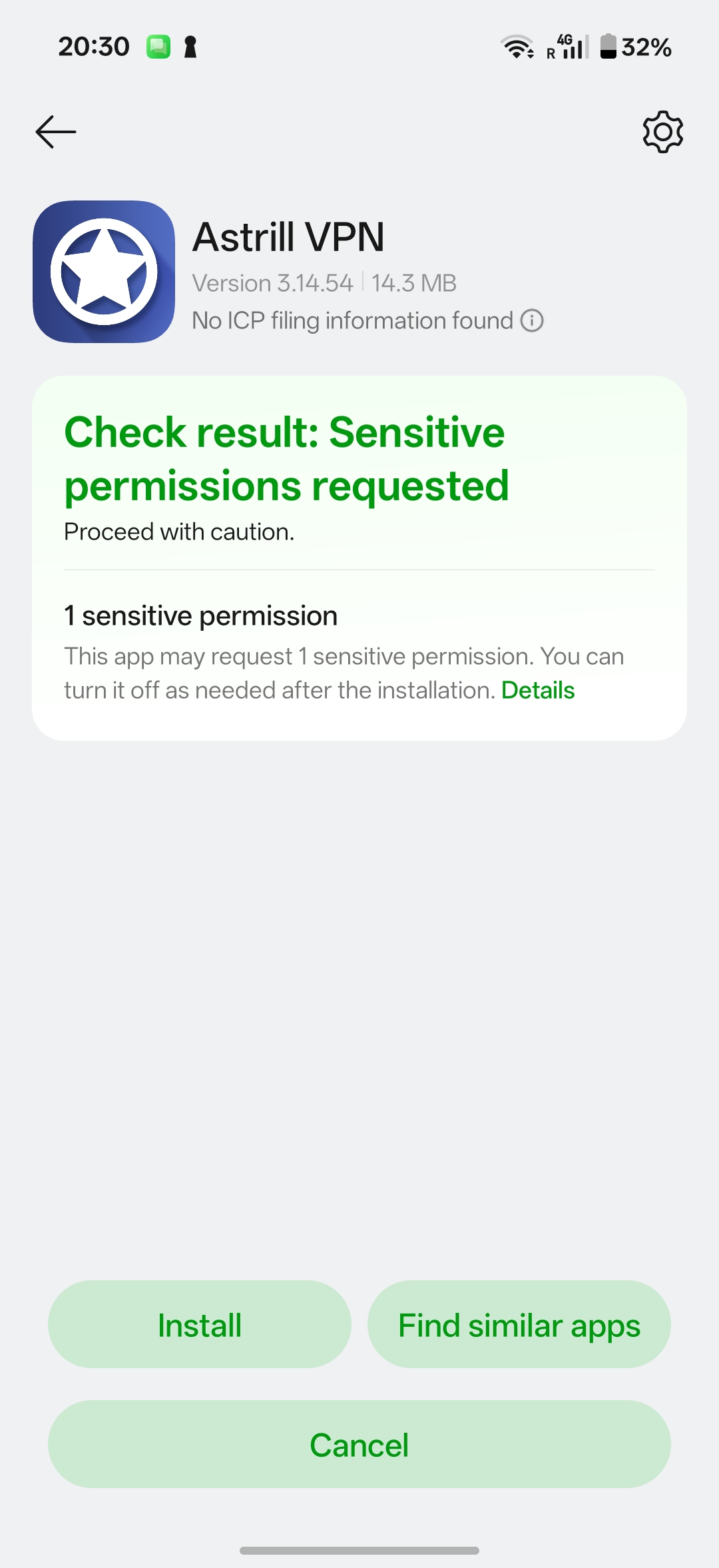
Review and install
Your phone may show a security check noting the app requests one sensitive permission — this is normal for VPN apps, since a VPN needs permission to route your network traffic. Tap "Install" to continue.
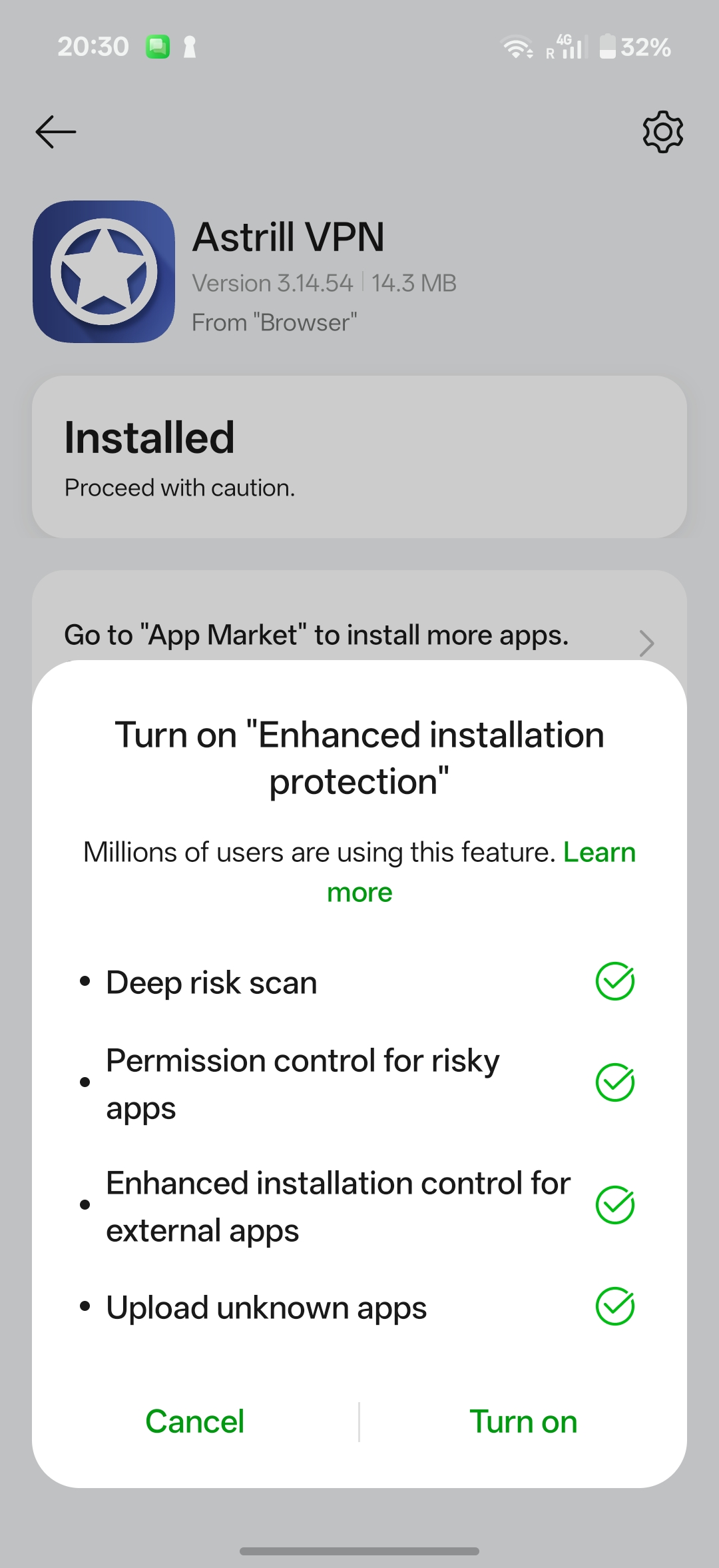
Skip the optional protection prompt
Some phones show a prompt to turn on "Enhanced installation protection." This is entirely optional — you can tap "Cancel" to skip it, or "Turn on" if you'd like the extra scanning. Either choice is fine.
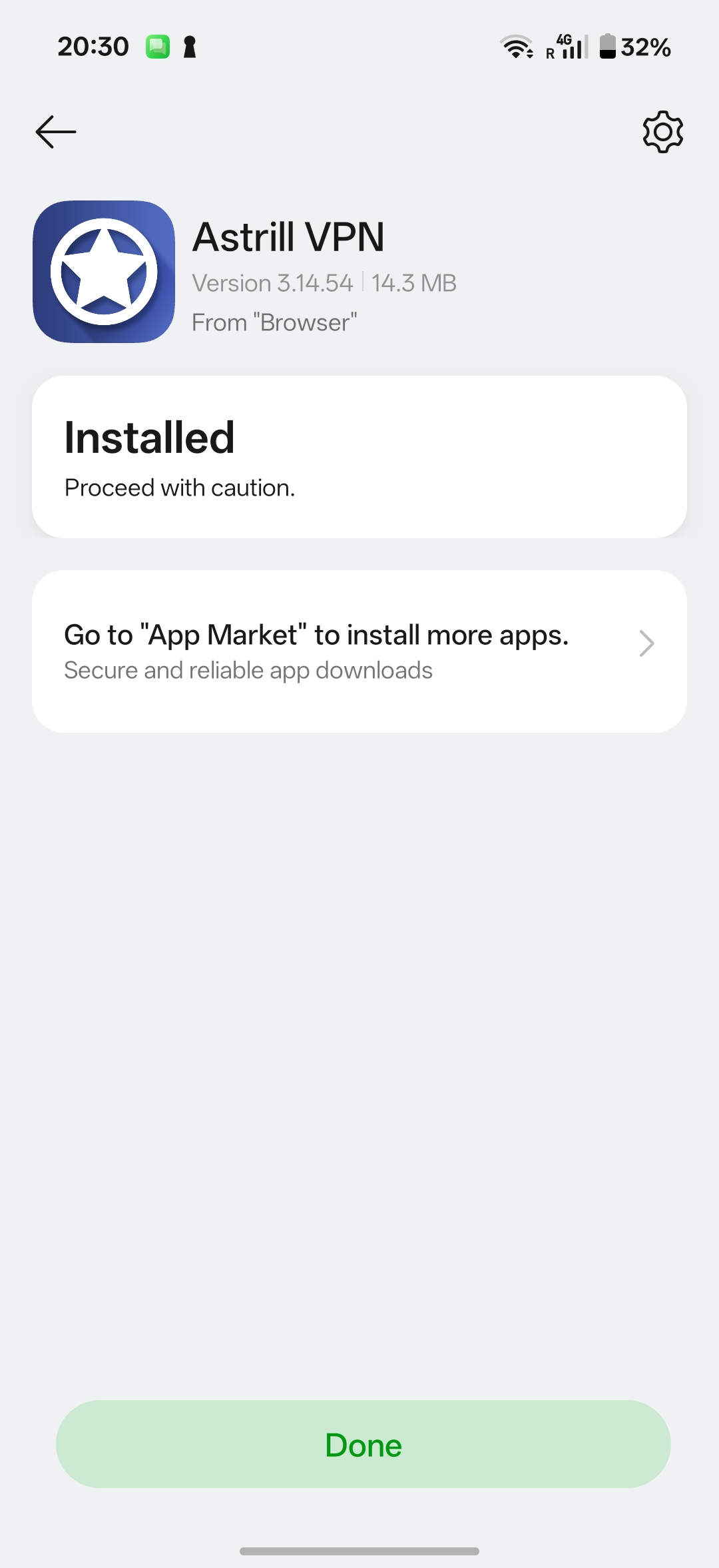
Installation complete
Once you see "Installed," tap "Done." Astrill is now installed on your device.
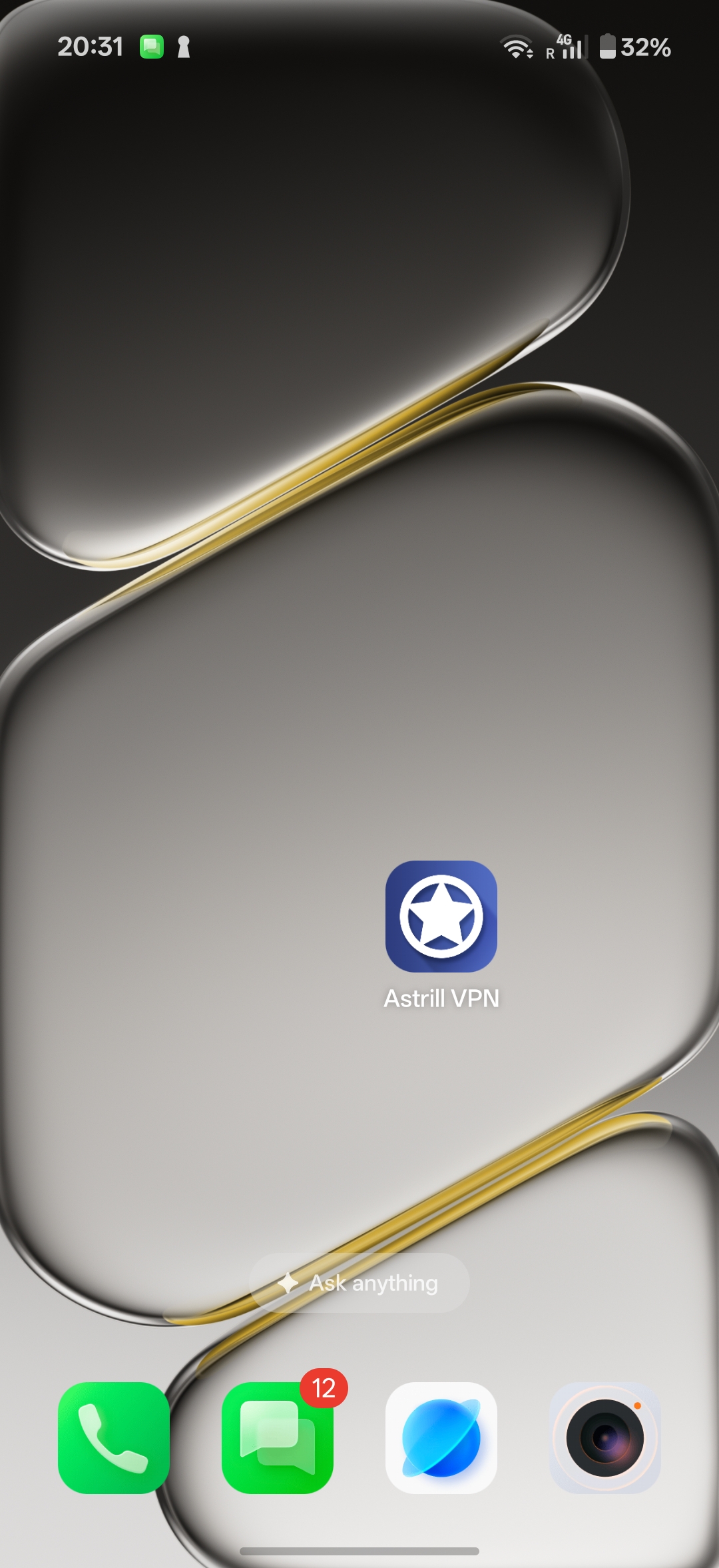
Open Astrill from your home screen
Find the Astrill VPN icon on your home screen or app drawer and tap it to open the app.
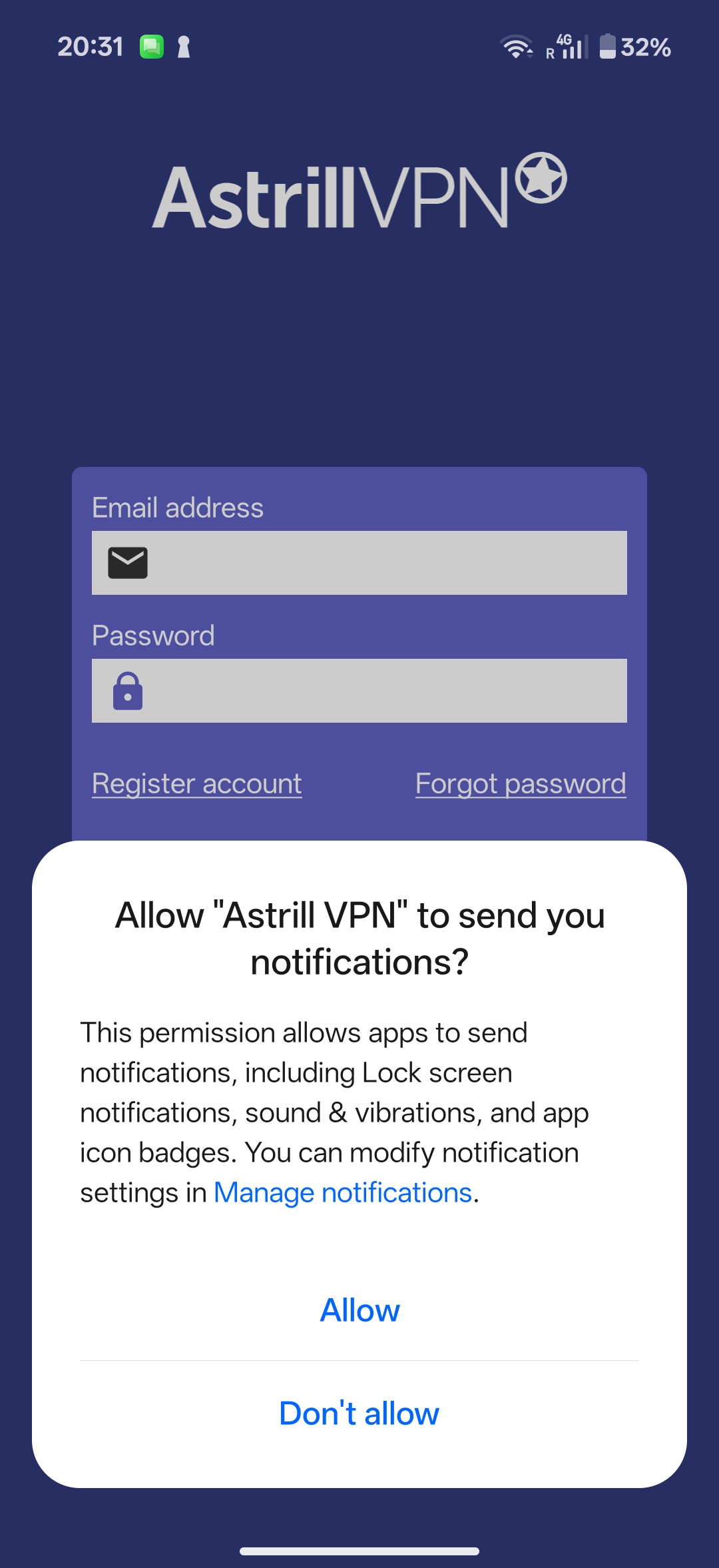
Allow notifications (optional)
Android may ask if Astrill can send you notifications. This is optional — choose "Allow" or "Don't allow," whichever you prefer, then continue to the login screen.
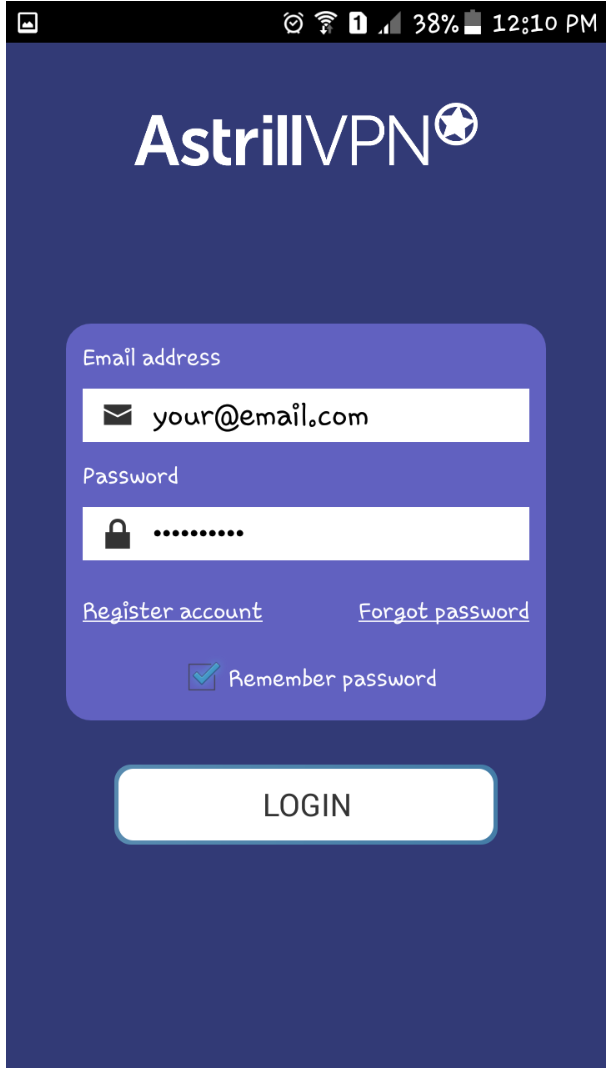
Log in with your account
Enter the email and password from your purchase confirmation email, then tap "LOGIN." If you can't find this email, check your spam folder, or message us on WeChat and we'll resend it.
Welcome screen
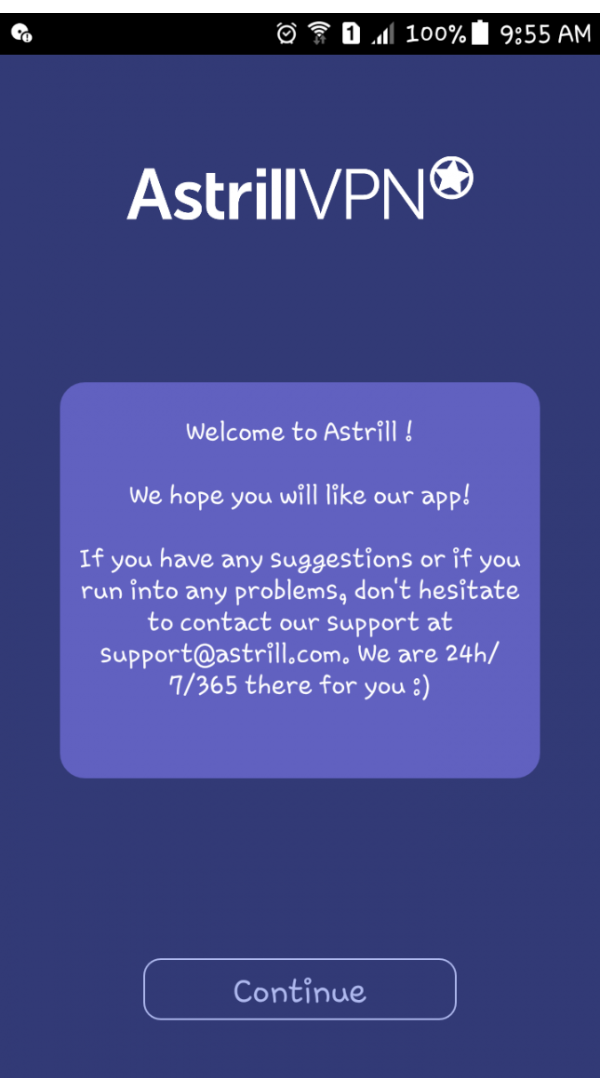
After logging in, you'll see a short welcome message. Tap "Continue" to proceed to the main app.
Choose a server
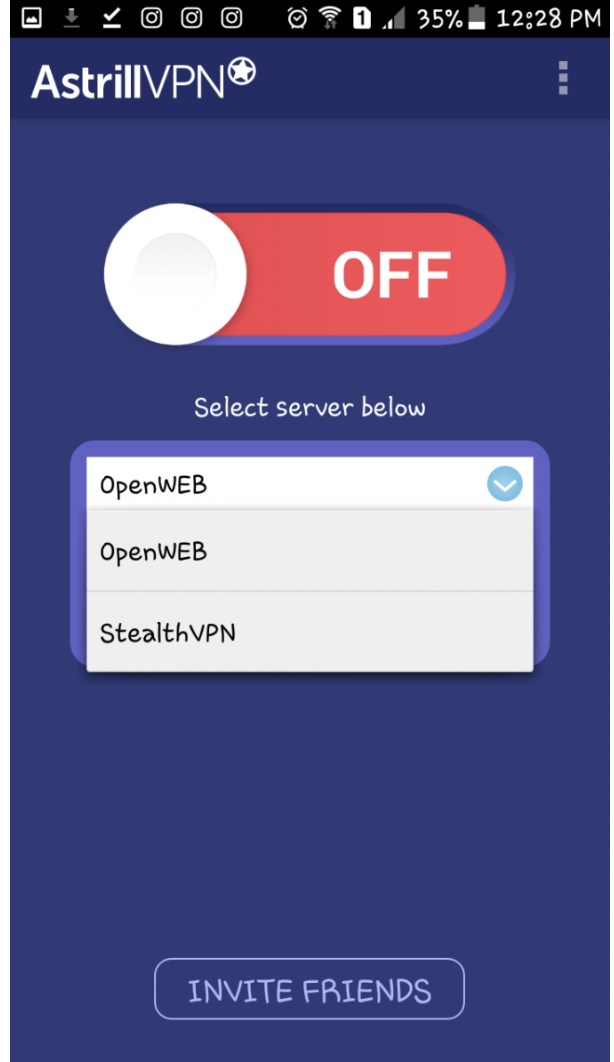
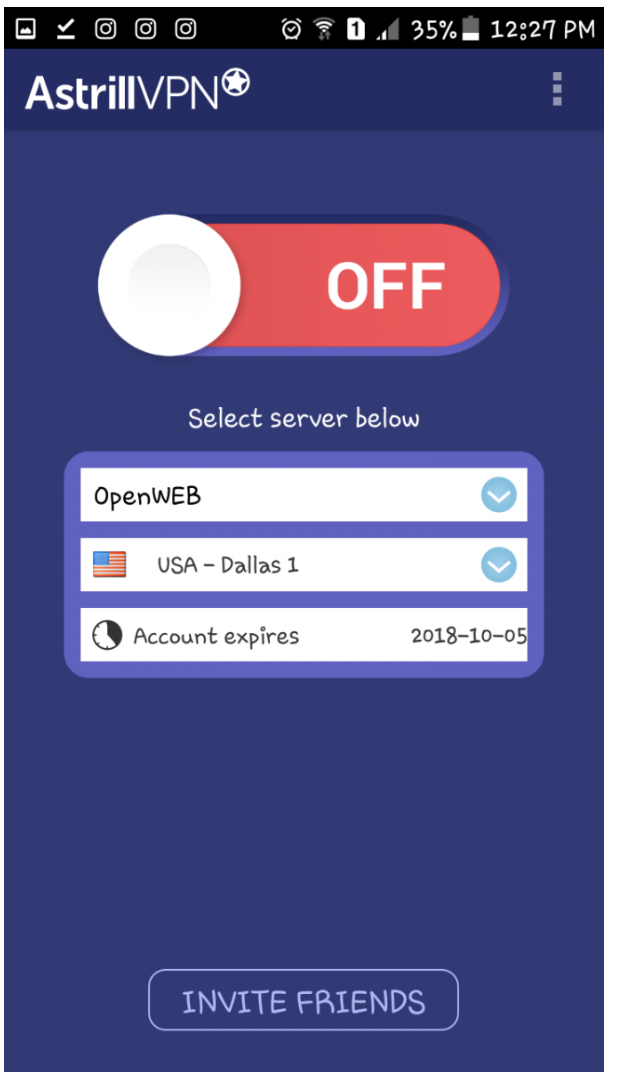
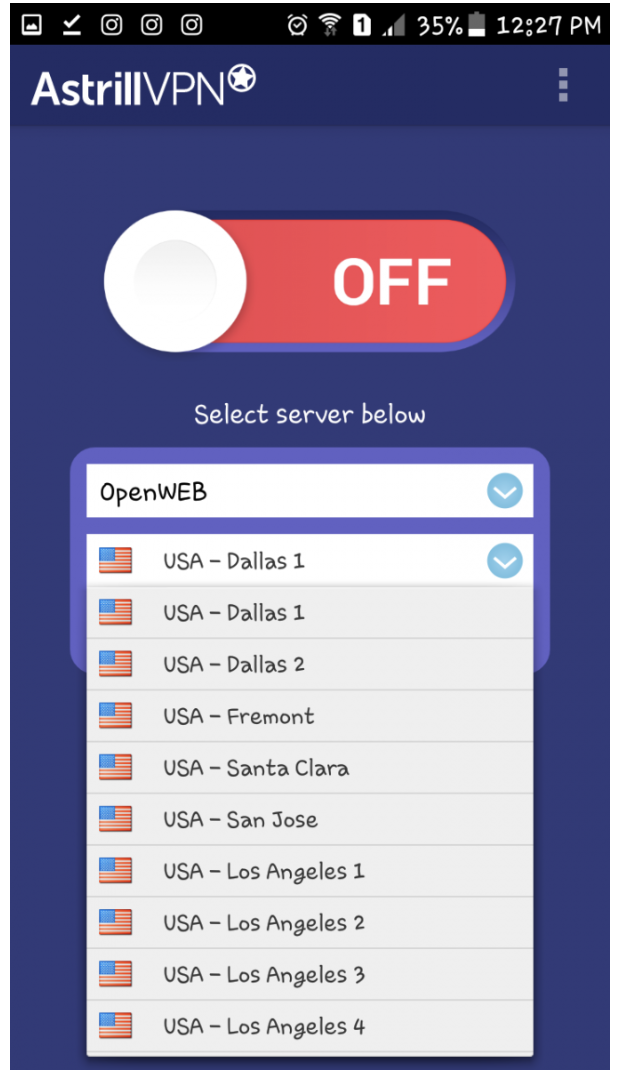
Tap the server dropdown to see the full list of available locations, then choose one. If a server feels slow, you can always come back and switch to another.
Allow the VPN connection request
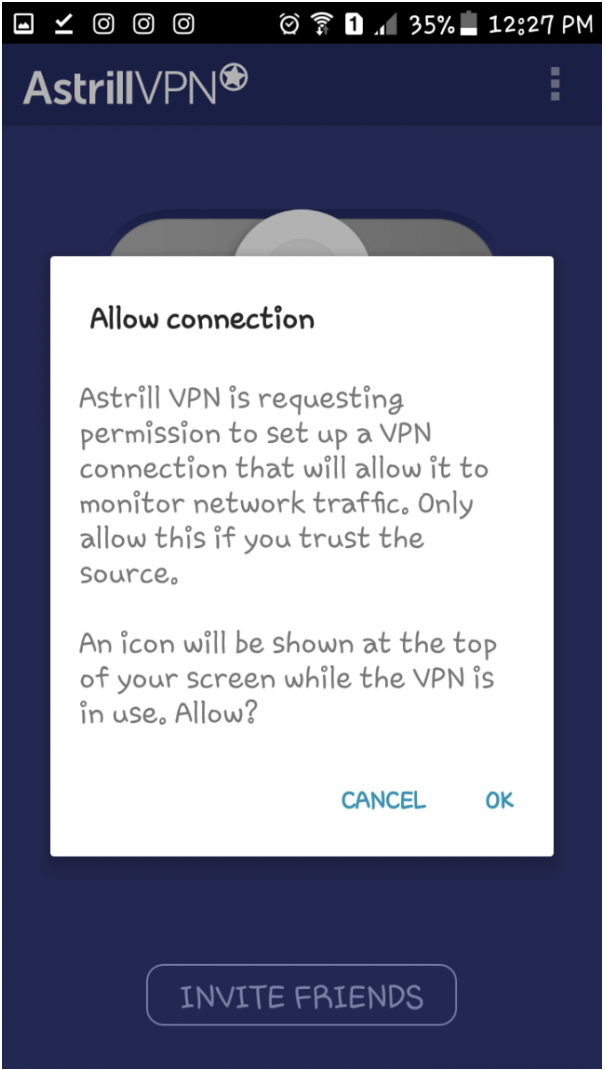
When you first connect, Android will show a system dialog asking if you trust this app to set up a VPN connection. Tap "OK" — this is standard for any VPN app on Android, not specific to Astrill.
You're connected
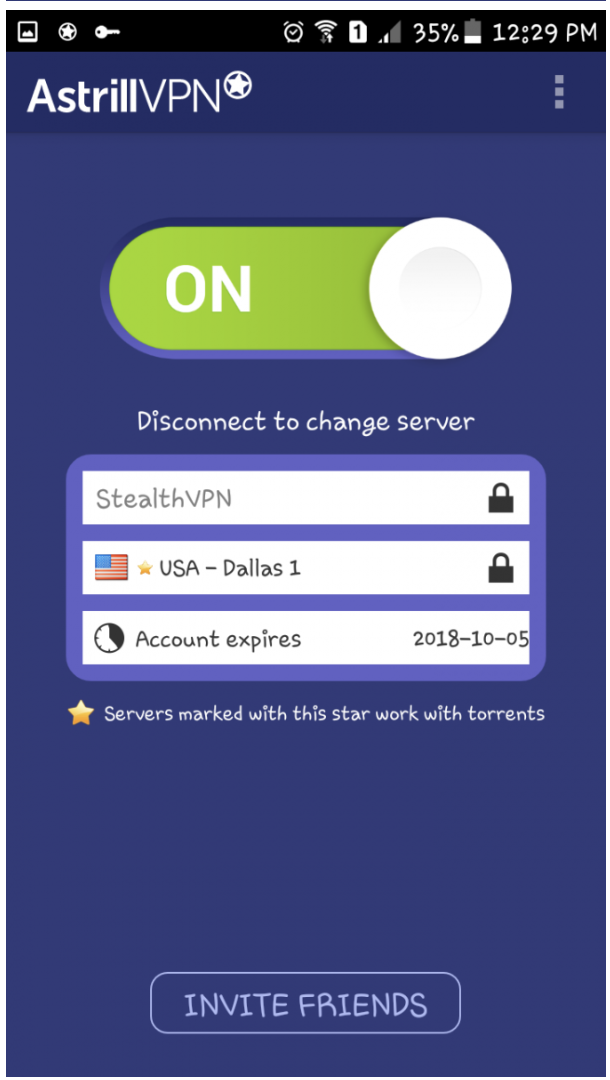
Once connected, the switch turns green and shows "ON," along with your chosen server and account expiry date. You can browse normally now — to change servers, tap the switch to disconnect first.
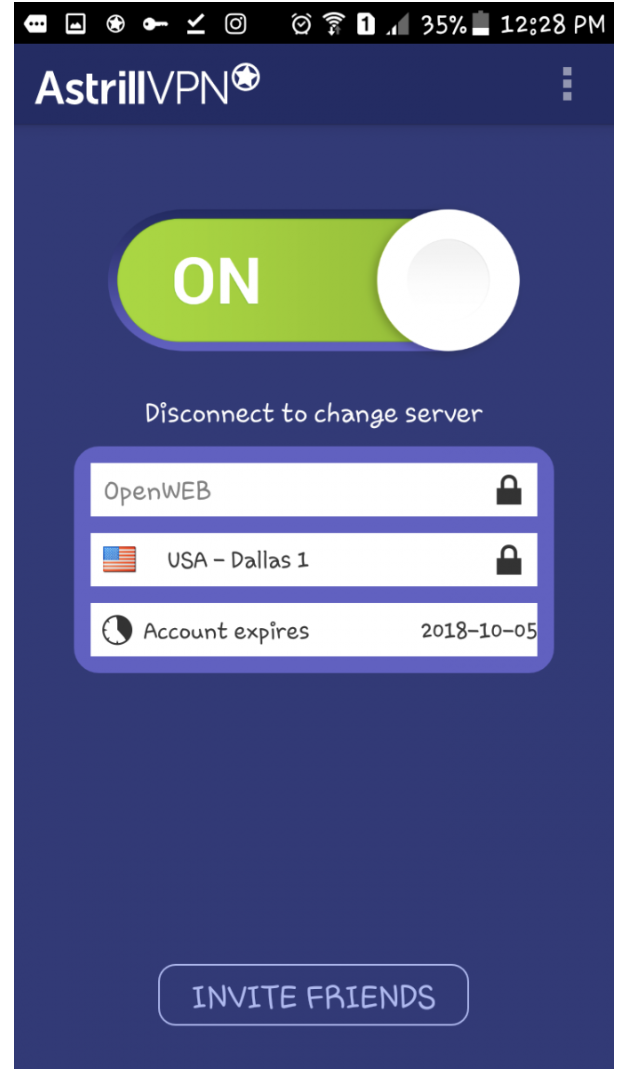
Switch protocols if a server feels blocked
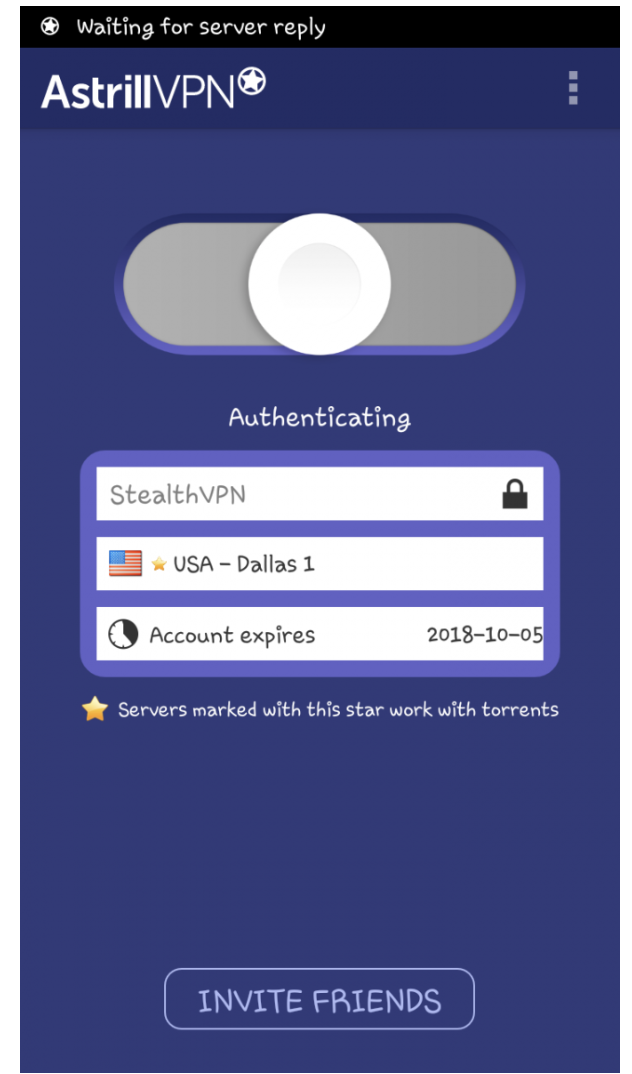
If OpenWEB feels slow or blocked, tap the protocol dropdown and switch to StealthVPN, which is designed to get through stricter network restrictions. You'll briefly see "Authenticating" while it connects, then the switch turns green again to confirm you're online.